Welcome to NavEase
NavEase is a powerful keyword-based URL redirection tool. This guide will help you navigate through the features and functionalities of our application.
Installation
1. Install browser extension
To begin using NavEase, start by installing the browser extension:
Click the "Add to Chrome" button for Chrome Extension or the "Install" button for Firefox Extension.
2. Install NavEase Admin Application
To update keyword to URL mapping and extend these bookmarks to share within organizations and teams, you must install the NavEase admin application. The admin application is written using Python (3.20) + Flask. The application is also dockerized for easy installation.
Use the following Docker command to install and run the NavEase admin application:
docker run --name navease-app -d -it \
-e 'SECRET_KEY=some_secret' \
-p 8080:8080 \
-v /usr/local/data/:/app/instance/ \
akhileshsre/navease-app:latest
The URL will be accessible on http://localhost:8080. You can also map this to your company domain after installing it in your organization.
Username : admin
Password : admin
One must reset the password for first time login.
Getting Started
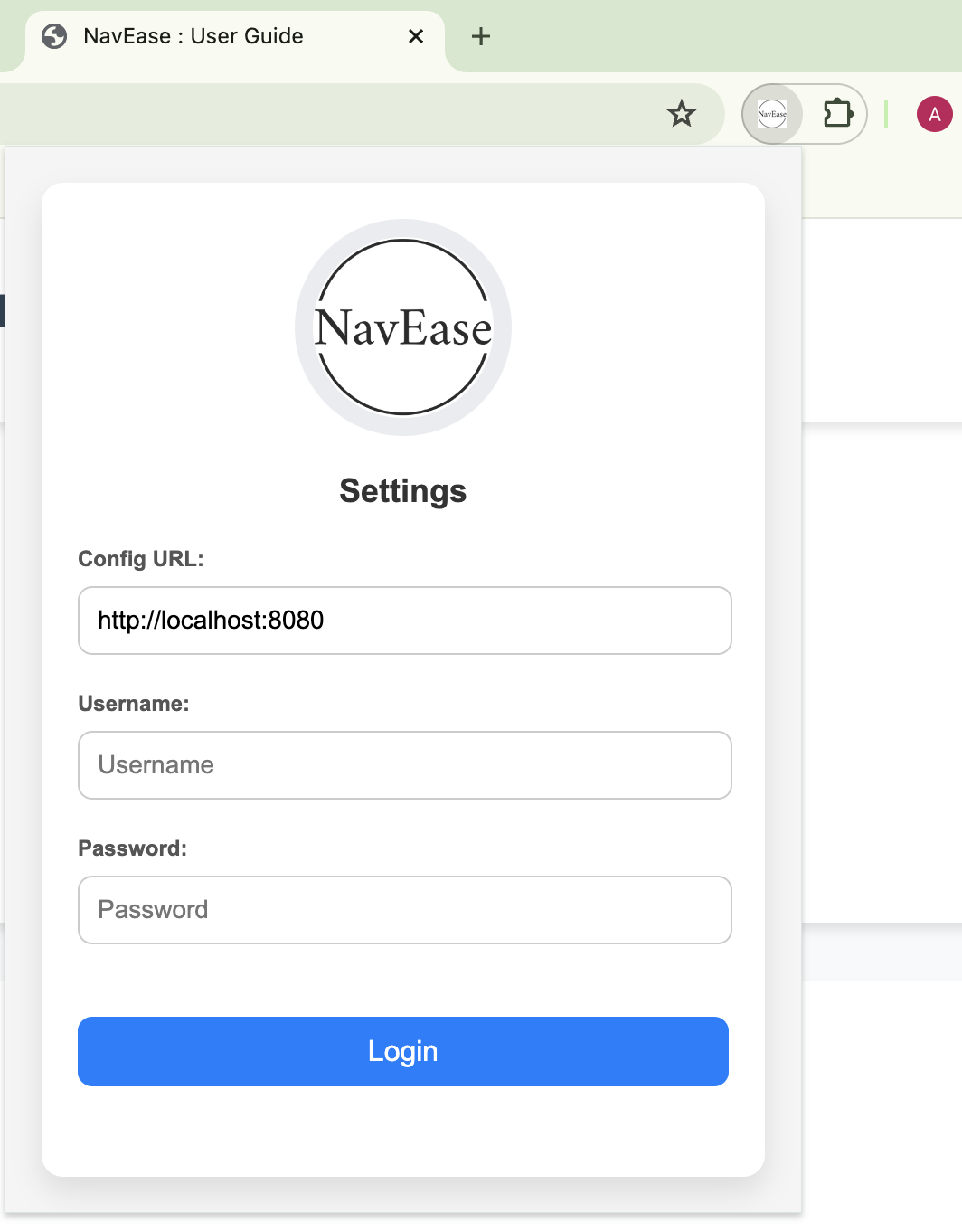
1. Login
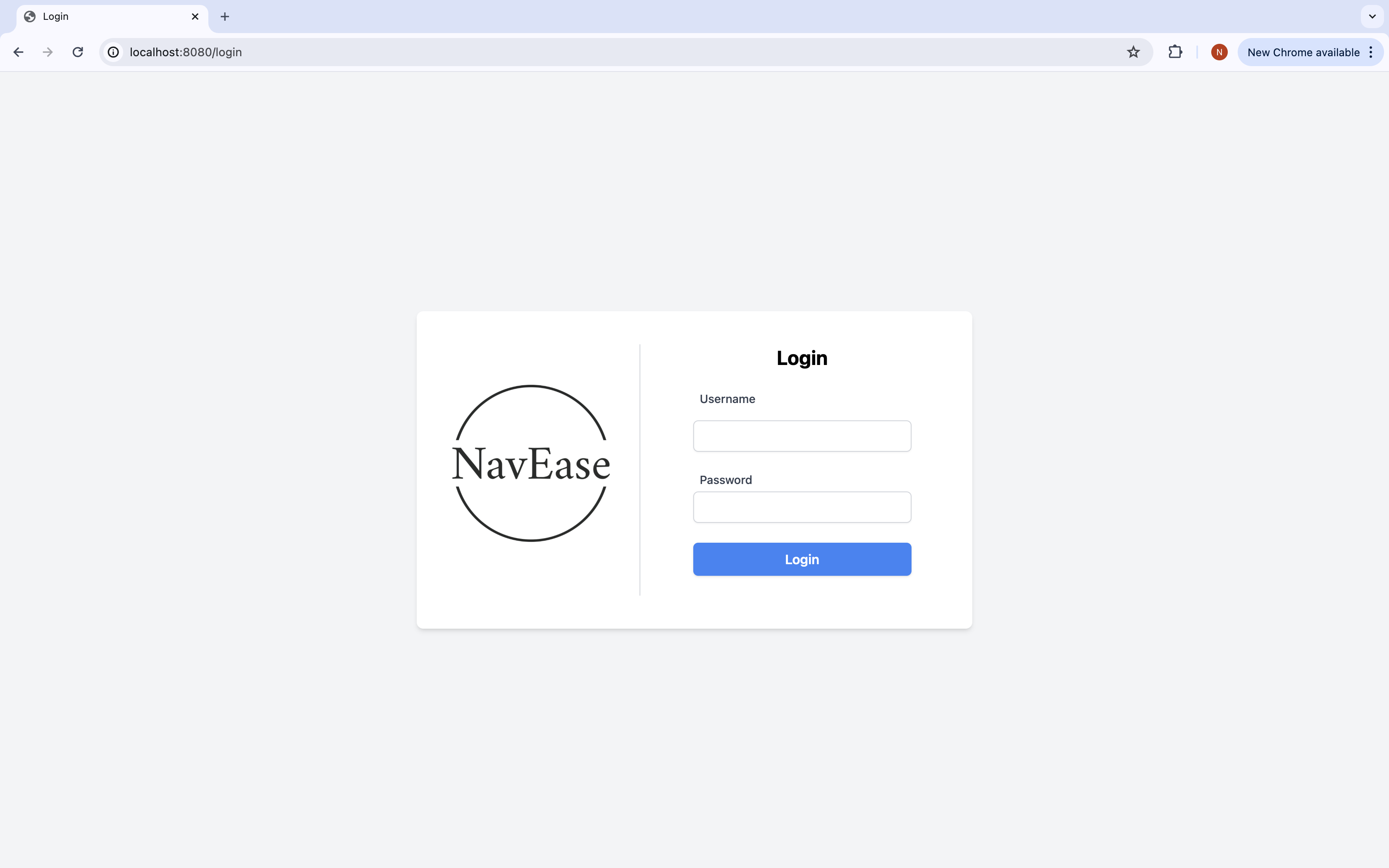
To begin using NavEase, you'll need to log in to your account.
- Navigate to the login page
- Enter your username and password
- Click the "Login" button
Dashboard Overview
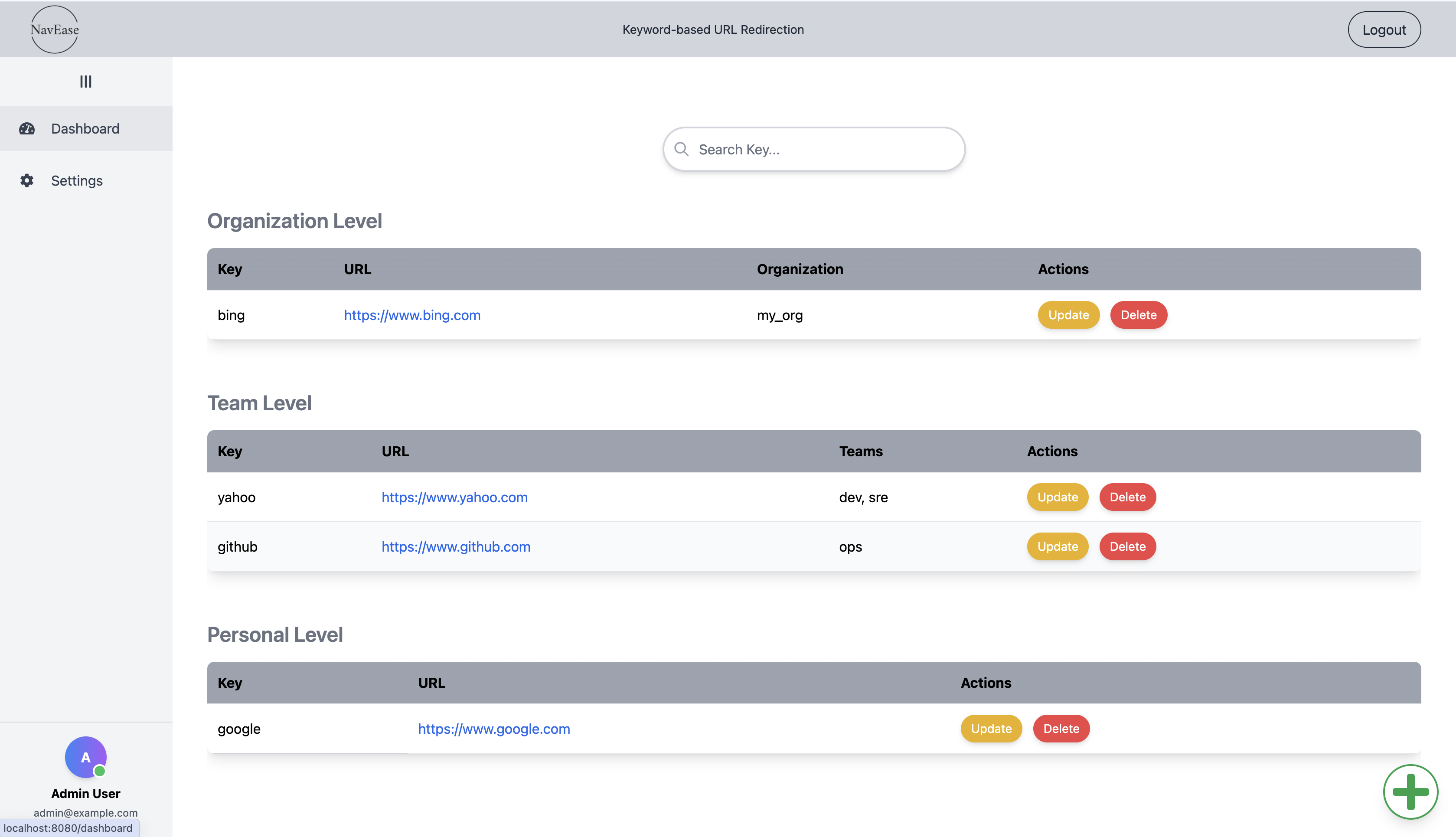
Once logged in, you'll be directed to your dashboard. Here's what you'll see:
- Organization Level URLs
- Team Level URLs
- Personal Level URLs. Even admin doesn't have access to user's personal URLs
Adding a New URL
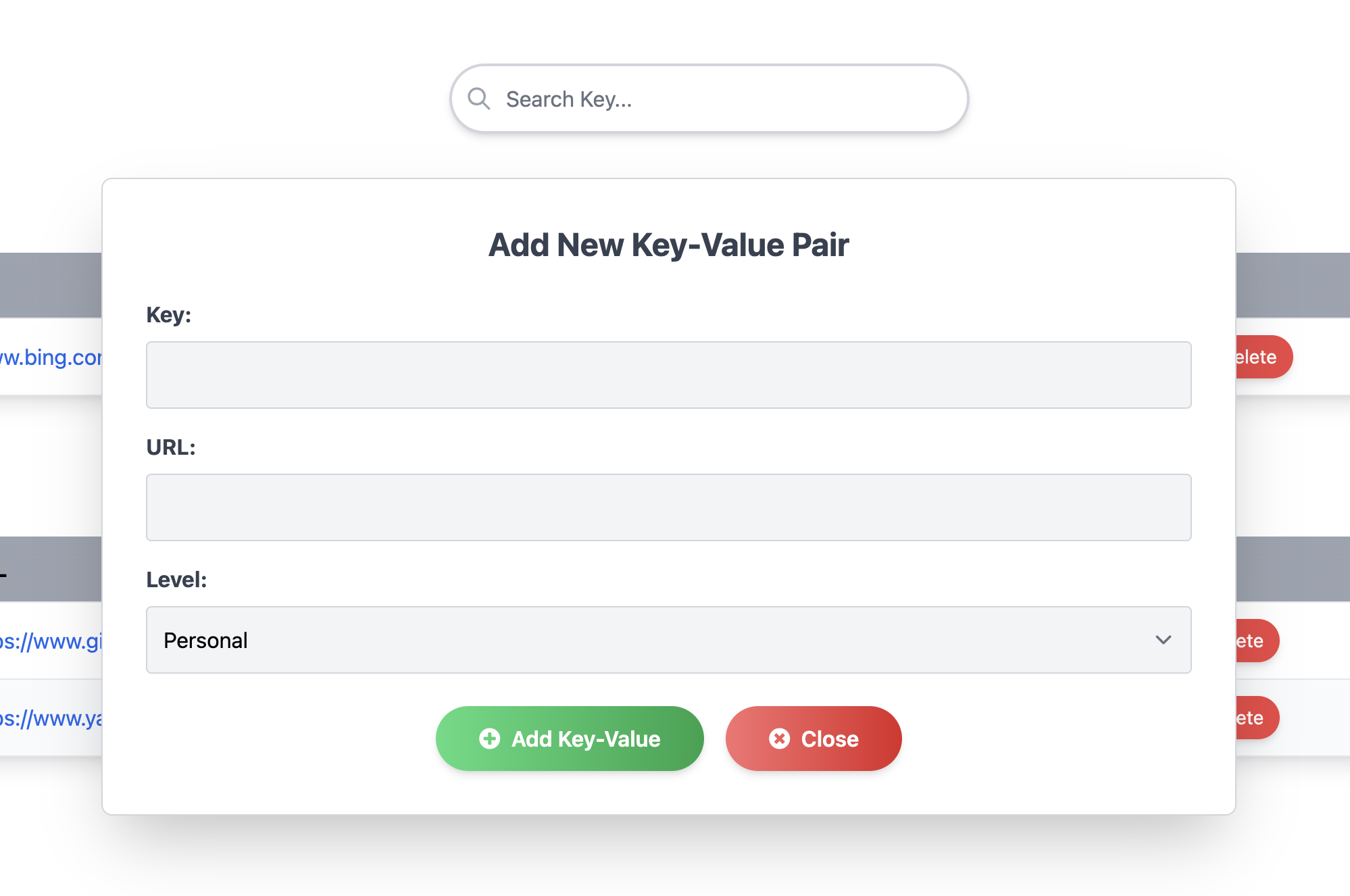
To add a new URL redirection:
- Click the "+" button in the bottom right corner
- Enter the key (keyword) and the URL
- Select the level (Personal, Team, or Organization)
- If Team or Organization, select the appropriate options
- Click "Add Key-Value" to save
Managing URLs
You can easily manage your URLs:
- Update: Click the "Update" button next to a URL to modify it
- Delete: Click the "Delete" button to remove a URL
User Profile
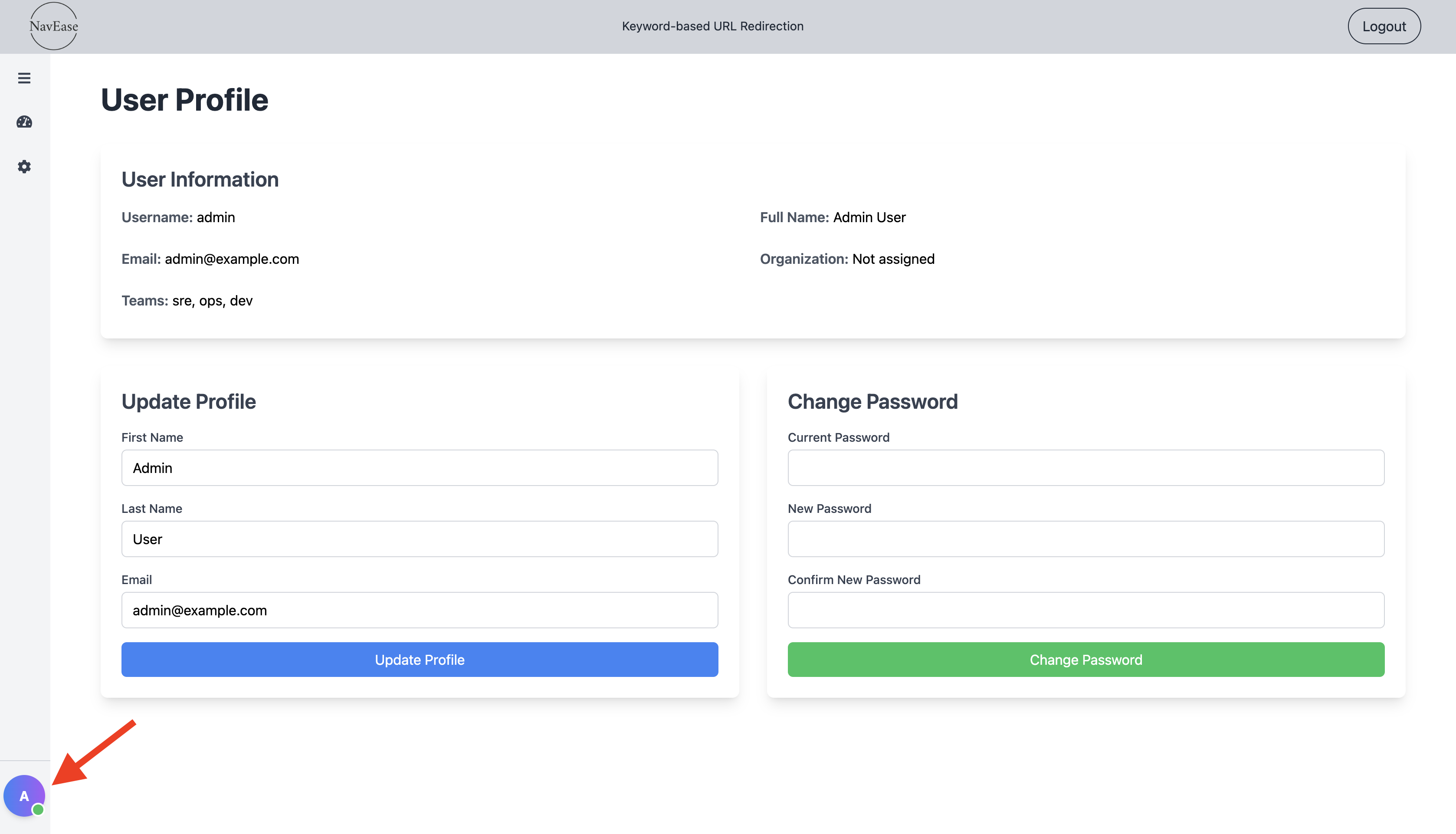
To view or edit your profile:
- Click on your profile icon in the sidebar
- View your information, including assigned organization and teams
- Update your profile information or change your password
Admin Features
If you have admin privileges, you'll have access to additional settings:
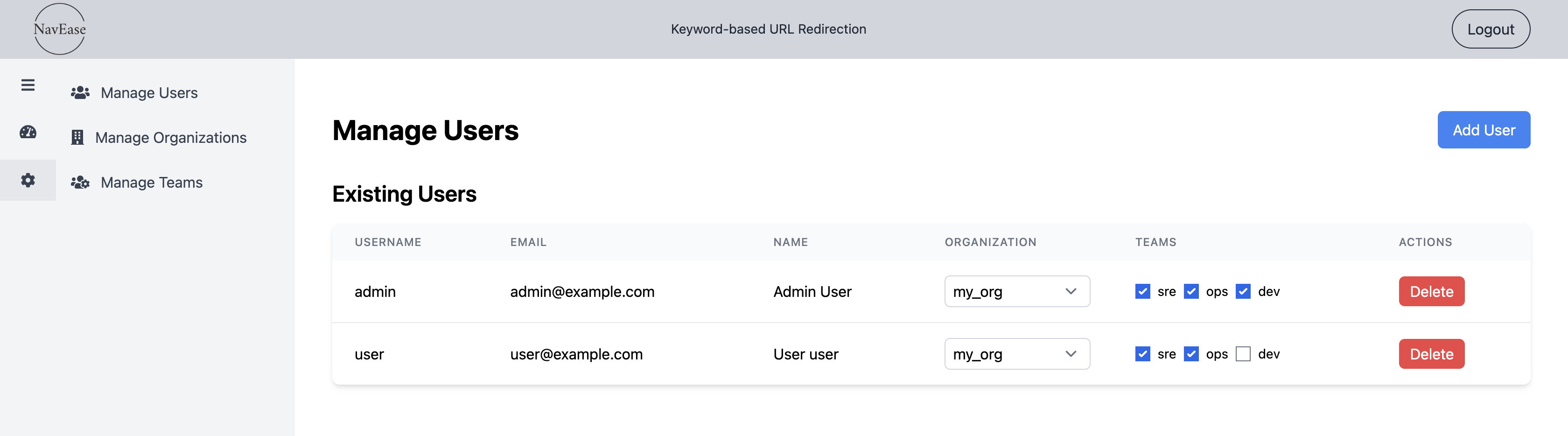
Manage Users
Add, update, or remove users from the system.
Manage Organizations
Create and manage organizations within NavEase.

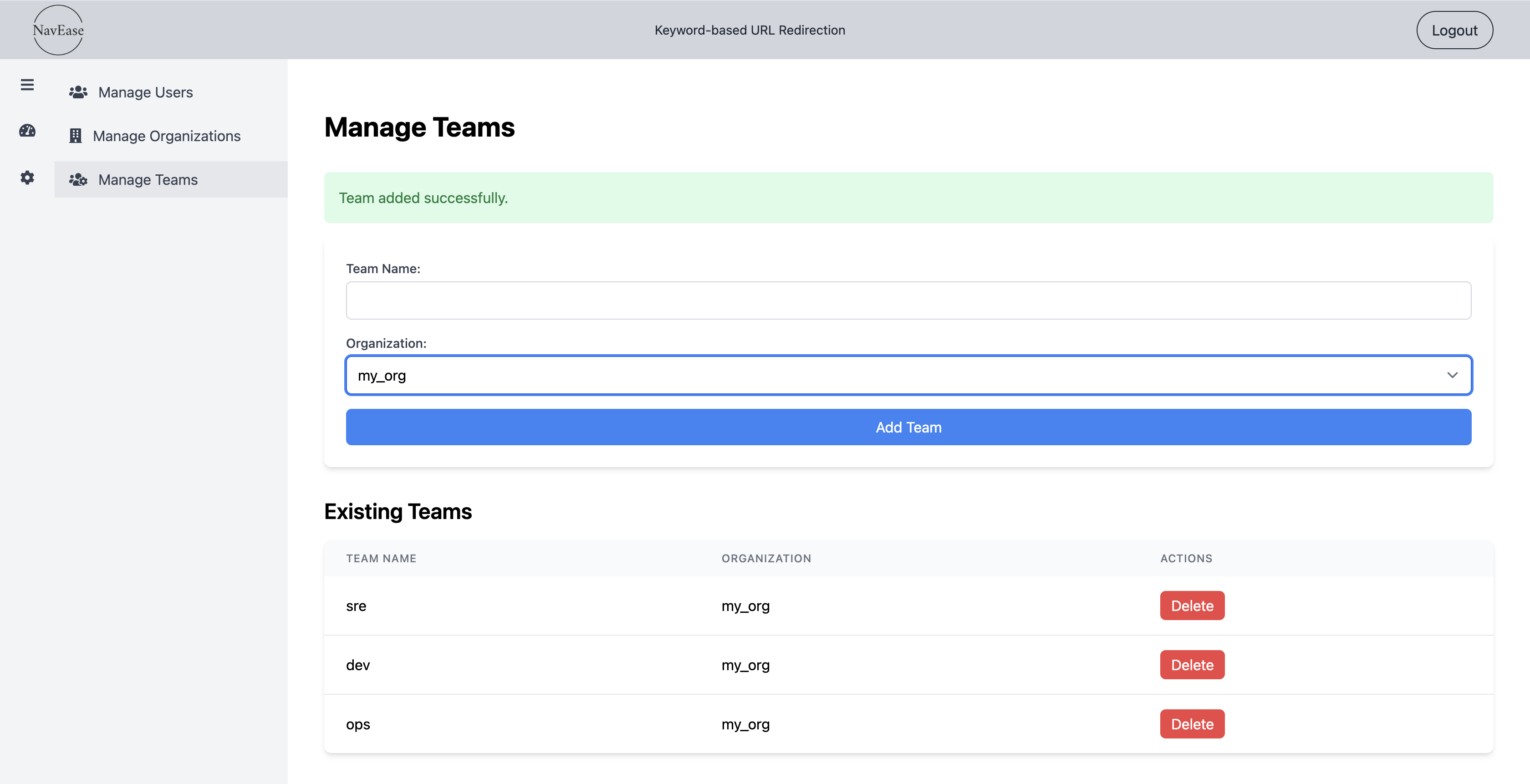
Manage Teams
Set up and organize teams within your organizations.
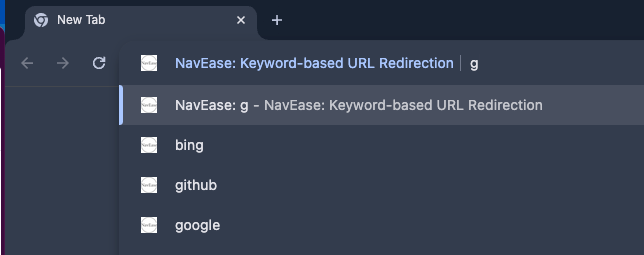
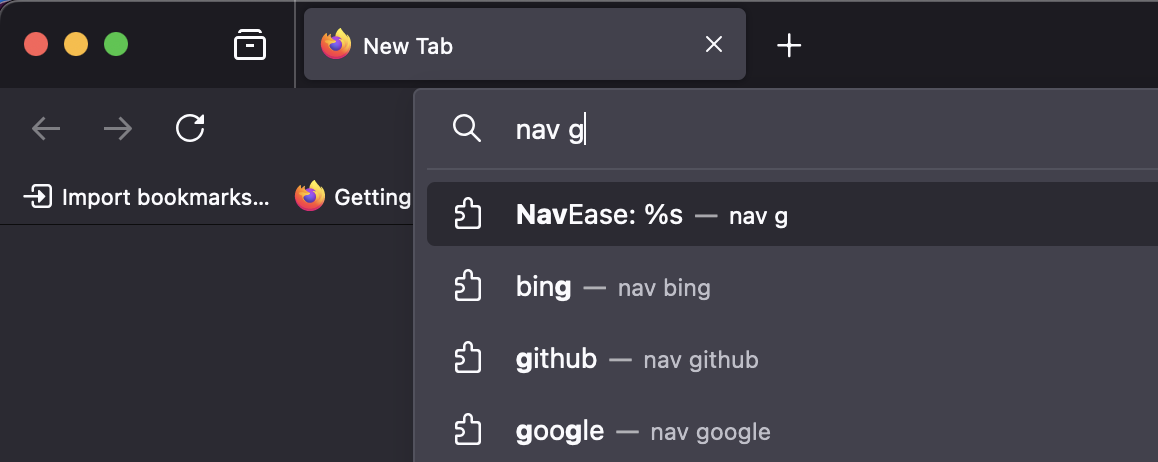
Usage with key "nav"
Type "nav" with space/tab to use
Once entered in NavEase mode, start typing your key and get suggestion from browser.